Inhaltsverzeichnis
Extrud3D Installation
This guide describes how to install the Extrud3D 3rdParty/Dependencies package on a Windows system. During the installation, additional components (e.g., Microsoft MPI, GTK3 Runtime) may be installed automatically.
Prerequisites
- Windows 11 (64-bit)
- At least 32 GB RAM and 8 CPU cores
- Local administrator rights (the UAC prompt must be confirmed)
- At least 10 GB of free disk space
- The Extrud3D 3rdParty/Dependencies installer is available locally. Download: <insert link here>
Installation
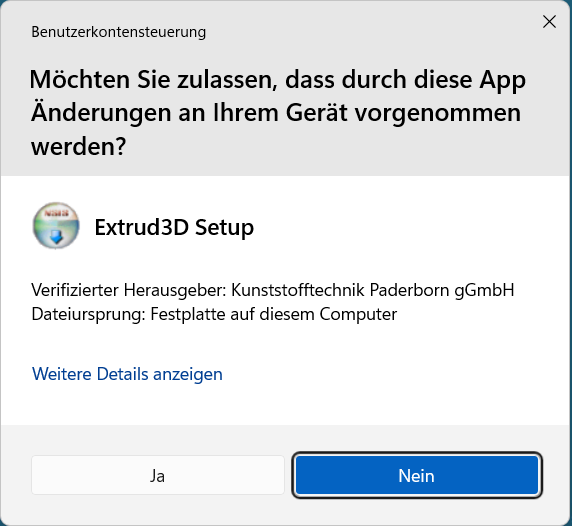
Start the setup and confirm administrator privileges
Launch the installer. Windows will display a security prompt (UAC).
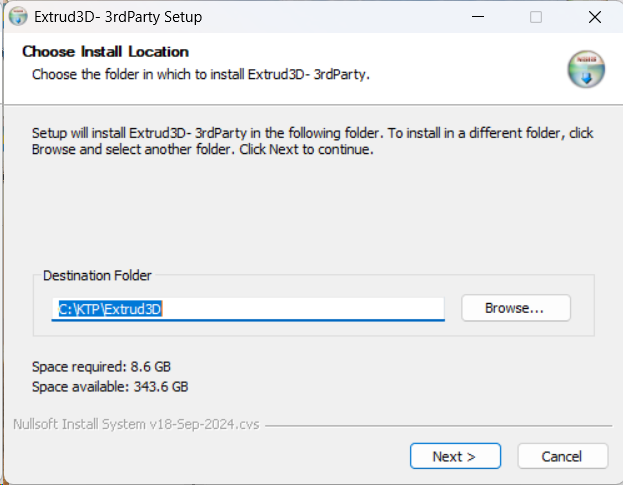
Select the installation path
In the setup dialog, define the target directory for the Extrud3D 3rdParty installation.
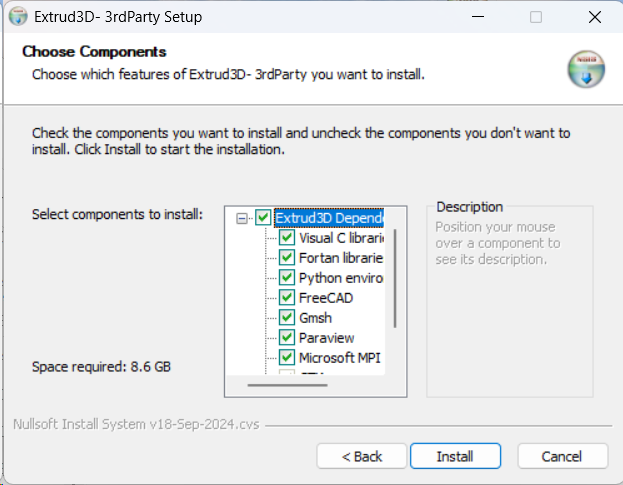
Select components
The required dependencies are shown as a component list.
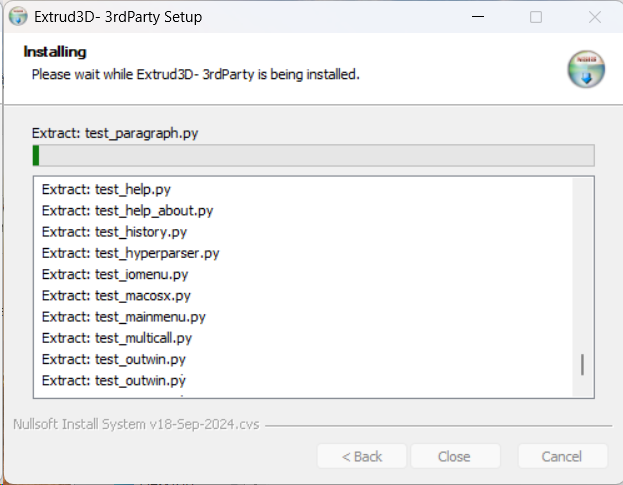
Installation in progress
The setup extracts and installs the selected components.
Additional Installers
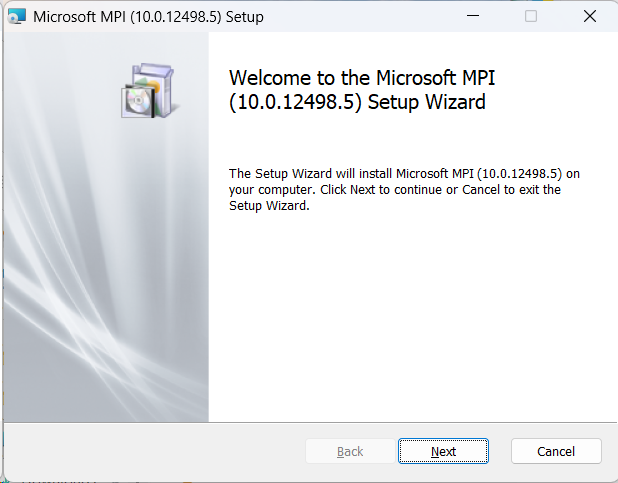
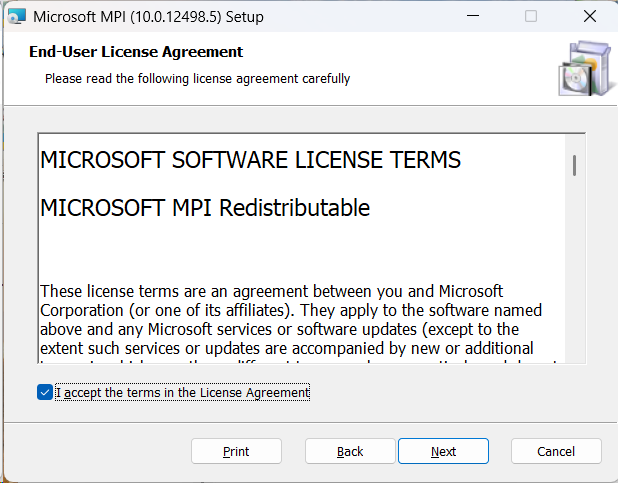
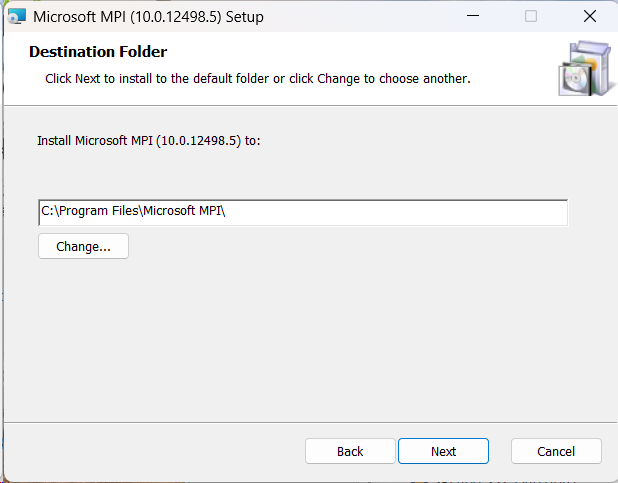
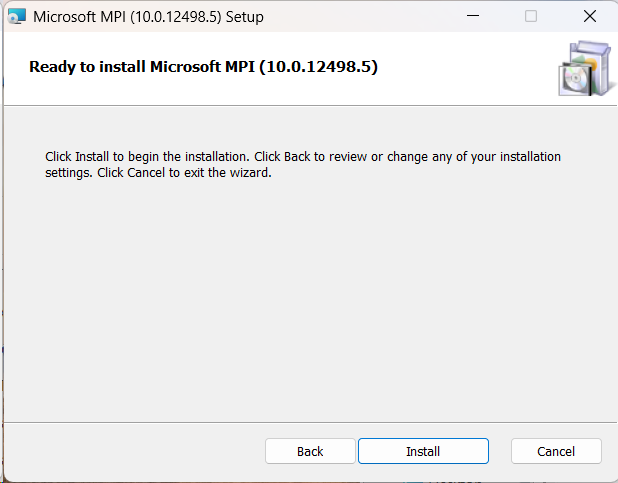
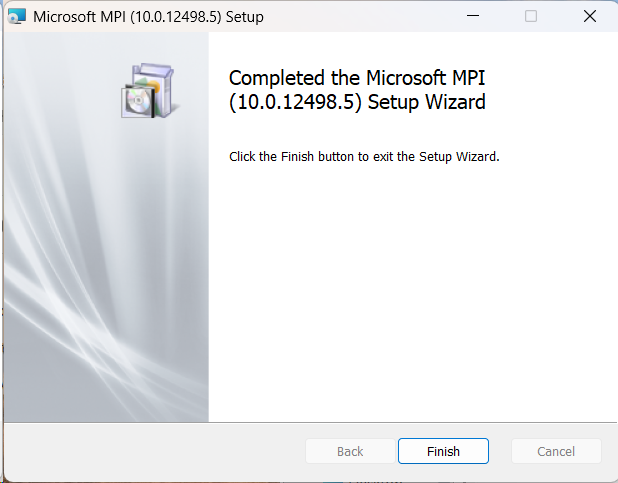
Microsoft MPI Setup
If Microsoft MPI is not installed yet, the Microsoft installer will start.
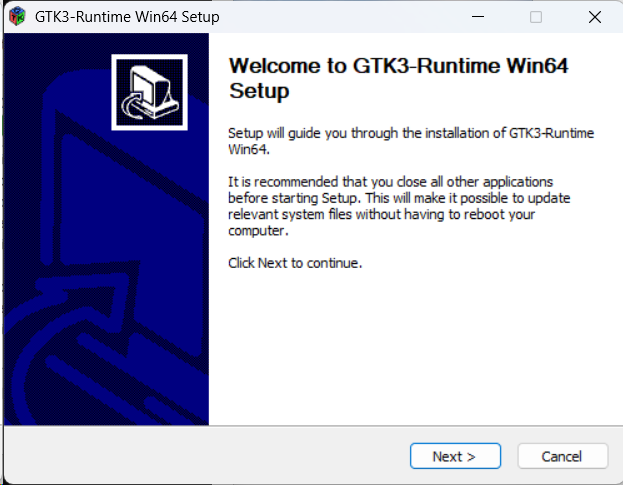
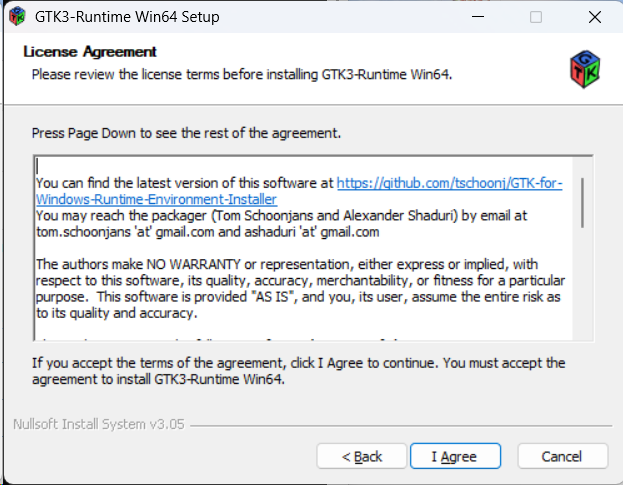
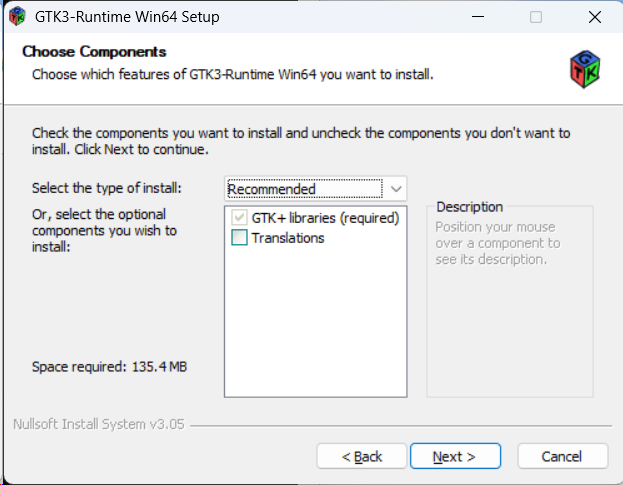
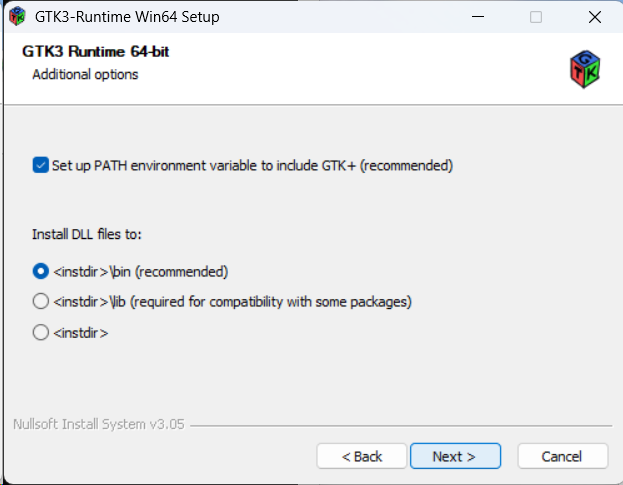
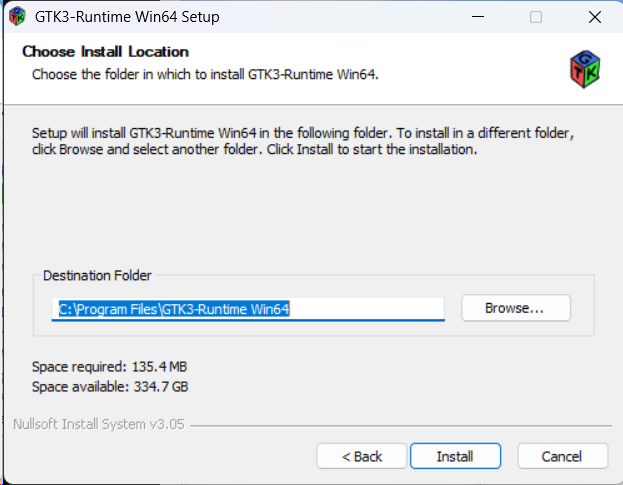
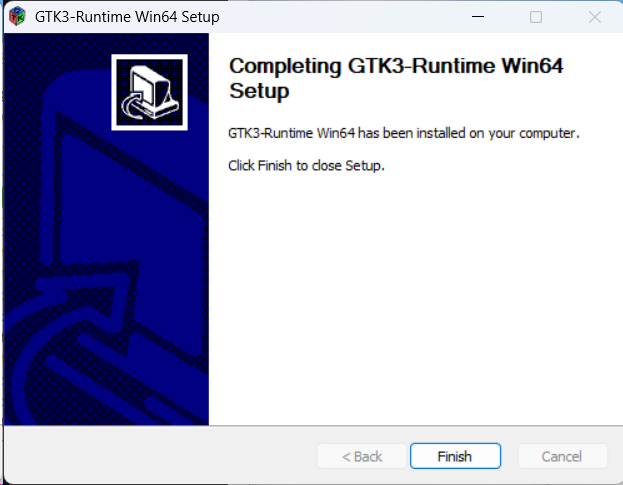
GTK3 Runtime Win64 Setup
Extrud3D also requires the GTK3 Runtime to be installed.
Podman Setup
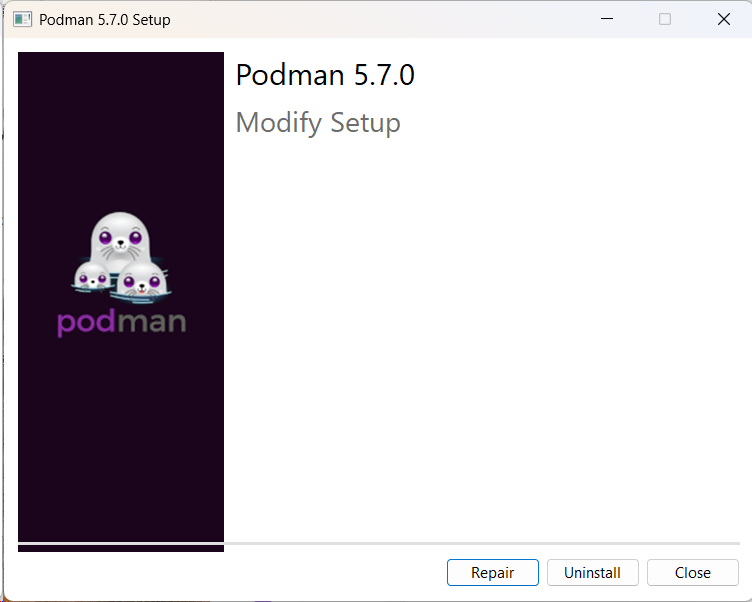
Podman can be used as an additional component for future development in Docker containers. Depending on the system state, the installer either runs a fresh installation or shows a “Modify” dialog if Podman is already present.
Completion
After the installation finishes, the Extrud3D 3rdParty installer reports success.
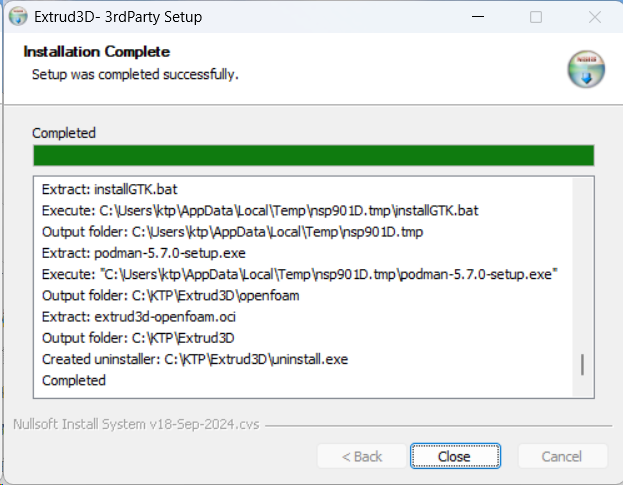
- The selected installation folder (e.g., C:\\KTP\\Extrud3D) has been created and contains the installed components.
- Under Windows Apps & features, the following entries should now be visible:
- Microsoft MPI
- GTK3-Runtime Win64
- Podman
- Note: If the GTK3 option “PATH environment variable” was enabled, a restart and/or log off/log on may be required until PATH changes are effective system-wide.