Dies ist eine alte Version des Dokuments!
Path: Main menu > Project > Print/Preview…
Path: Context menu Diagram (right mouse button) > Print process…
The command Print is located in the menu at the item Project.
The print dialog is divided into six subsections. Generally, it can be summarized that every subsection can be dropped out, so that only the required information will be printed. When pressing the button Page settings…, the margins and paper sizes will be defined. At the same time it is possible to view the print preview.
General Settings
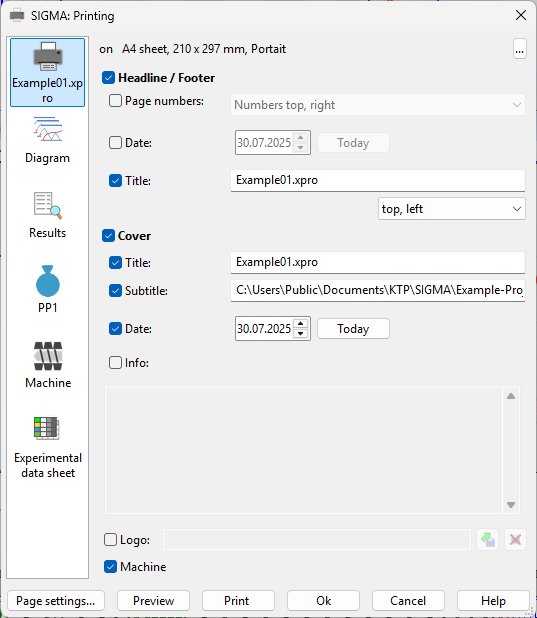
Within the general settings (cf. figure) the user can define the general formatting of print documents. Beside determining the pagination within the header and footer area, the title of the document can be selected here. Further, the design of the front page can be selected at this point. The user can define a subtitle, a date, an information text as well as a company logo. If a certain information should not be printed, it can be dropped out at the user's option.
Diagram
Path: Main menu > Project > Print/Preview…
Path: Context menu Diagram (right mouse button) > Print diagram…
Within the print settings for diagrams (cf. figure), every diagram to print will be selected. If there are defined new diagrams among Option, Diagram, Diagram, these will be indicated in the data sheet as well. How user-defined diagrams can be determined, will be described in chapter Options.
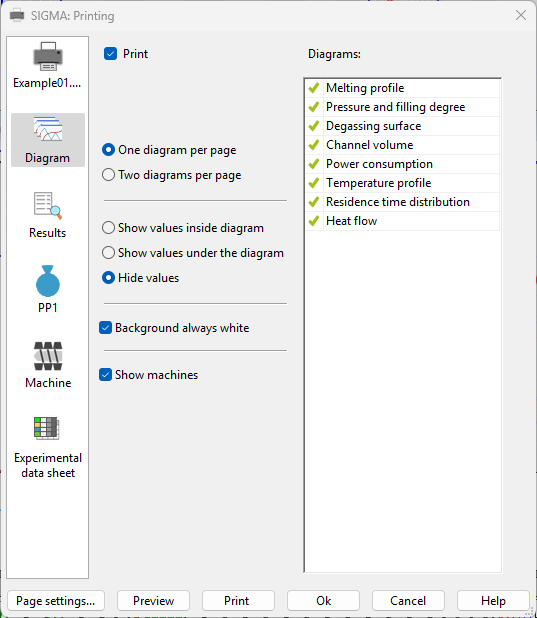
The user can additionally define whether one or two diagrams per page shall be printed. The value data sheets of the ongoing processes can be printed either separately or inside the diagram. If it is requested to choose a white background instead of the SIGMA color, the user is able to perform it in the settings. While putting a checkmark to „Show only non-hidden machines“, every diagram of the related machine will be printed.