Dies ist eine alte Version des Dokuments!
Options
Path: Main menu > Options
The menu item Options comprises the possibility to make general and also individual settings for the layout of diagrams and result lists.
By selecting the points General, Diagram, Result list or Colors the dialog mask Options is opened up on the desktop (see figure). This dialog comprises all data sheets named like the mentioned points.
All new settings can be saved choosing the item Options, Save. This will make sure, that the changed options are available the next time you start SIGMA.
Path: Main menu > Options > Save options
General
Path: Main menu > Options > General…
In this entry you can select the language between 'German' and 'English'. The translation takes place when you confirm the OK button. SIGMA does not have to be restarted for this.
Under Screw tip you can select how the processing direction is visually displayed. If you select 'left', the processing unit is drawn from the right (gearbox) to the left (screw tip), if you select 'right', the display is exactly the opposite.
An activated checkbox Show number of elements causes the number of available machine element pairs to be displayed in the machine tool box. In order for these to be visible, the number of available pairs must be entered in each defined element under 'Info…' as additional information.
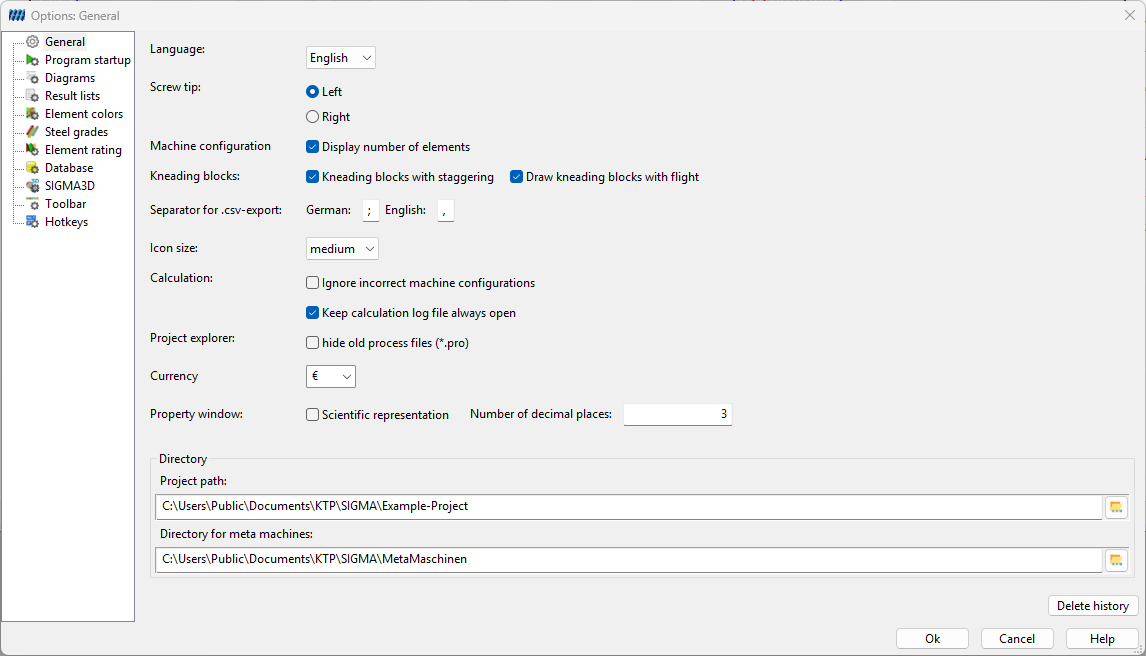
The representation of kneading elements can be done in different ways. It is possible to display kneading elements with corresponding staggering angles. Furthermore, the option is available to indicate a flight drawing in kneading blocks.
The separator setting for the .csv export allows the individual definition for the German and English language setting. Especially the Microsoft Excel spreadsheet handles a comma as separator in the English version, while the German version assumes a semicolon by default.
The Calculation setting describes various options for the SIGMA calculation process. Activating the checkbox 'Ignore machine error messages' still allows the process to be simulated even though the procedural setup has errors. The option 'Keep calculation log file open' does not automatically close the log window after a simulation.
In the SIGMA project explorer you have the option to show or hide old process files (*.pro, SIGMA < v10.0). When opening old files, a porting wizard opens afterwards, which converts the process into the current data structure.
Under Currency, the calculation unit for the machine cost calculation can be defined.
Directories: Here the project path and the location for the metamachines can be defined.
Program Startup
Path: Main menu > Options > Program Startup…
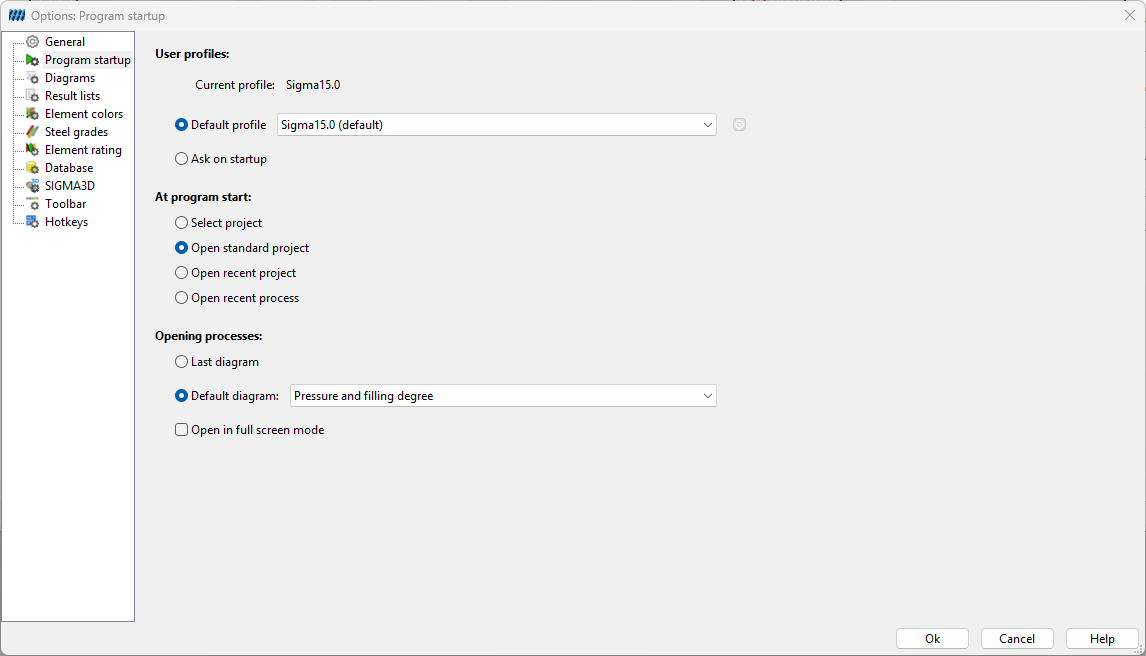
With the dropdown menu next to Default profile, a desired profile can be set as the default profile. Furthermore, it is possible to select the required profile each time SIGMA is started.
Under section at program start you can define which projects or processes are to be opened and how. Open process defines which diagram is automatically displayed when a process is opened.
Diagram
Path: Main menu > Options > Diagram…
The diagrams can be managed in this area. Diagrams can be added or deleted using the plus and minus buttons above. Various diagrams can be created using the diagram settings. The background colour for the diagrams can be selected to the right of “Name”.
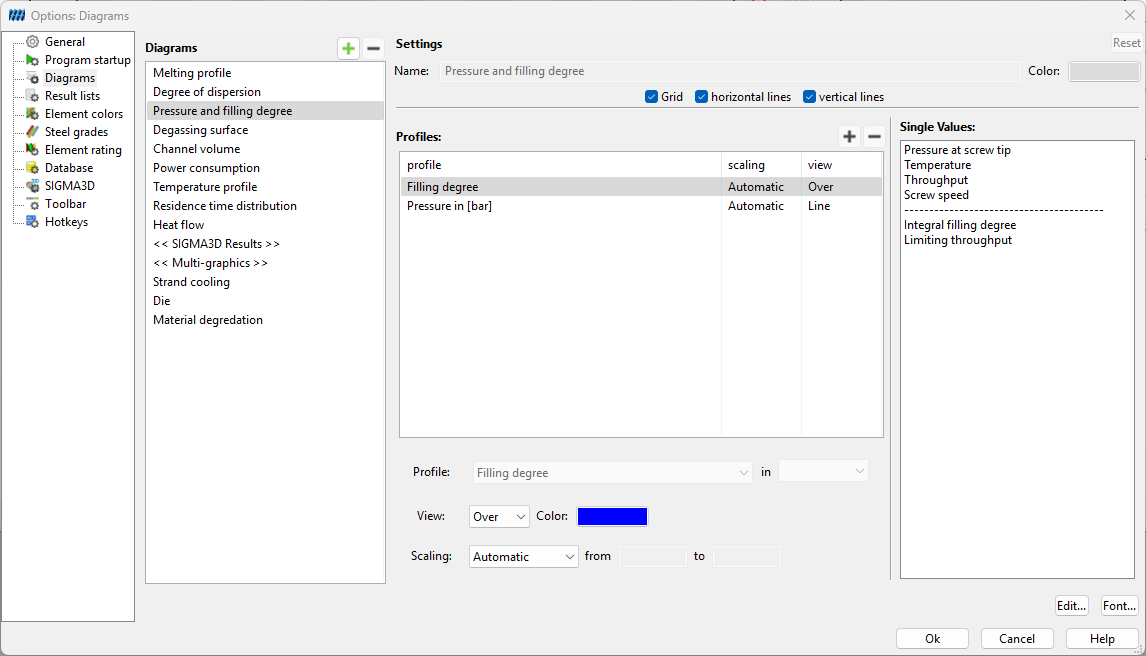
Under the “Trends” segment, you can select various result trends to be displayed in the diagram. Further down, you can then set the exact display of the unit and the scaling of the respective trend. You can also adjust the colour and select a logarithmic display.
The individual values can be specified in the Individual Values section. Click on the Font button to adjust the font size and font displayed below the diagram.
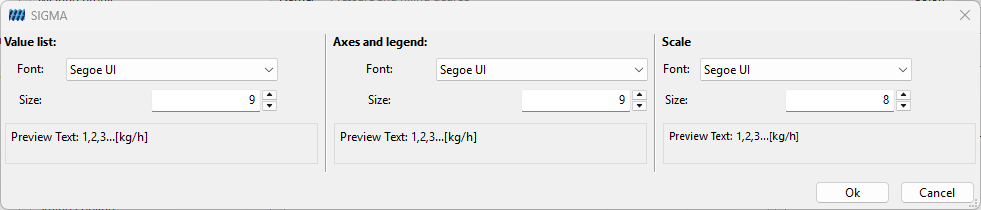
It is also possible to individually adjust the font and font size of the value list, axes and legends, and scale. The configuration can be accessed via the Font… button.
Result List
Path: Main menu > Options > Result list…
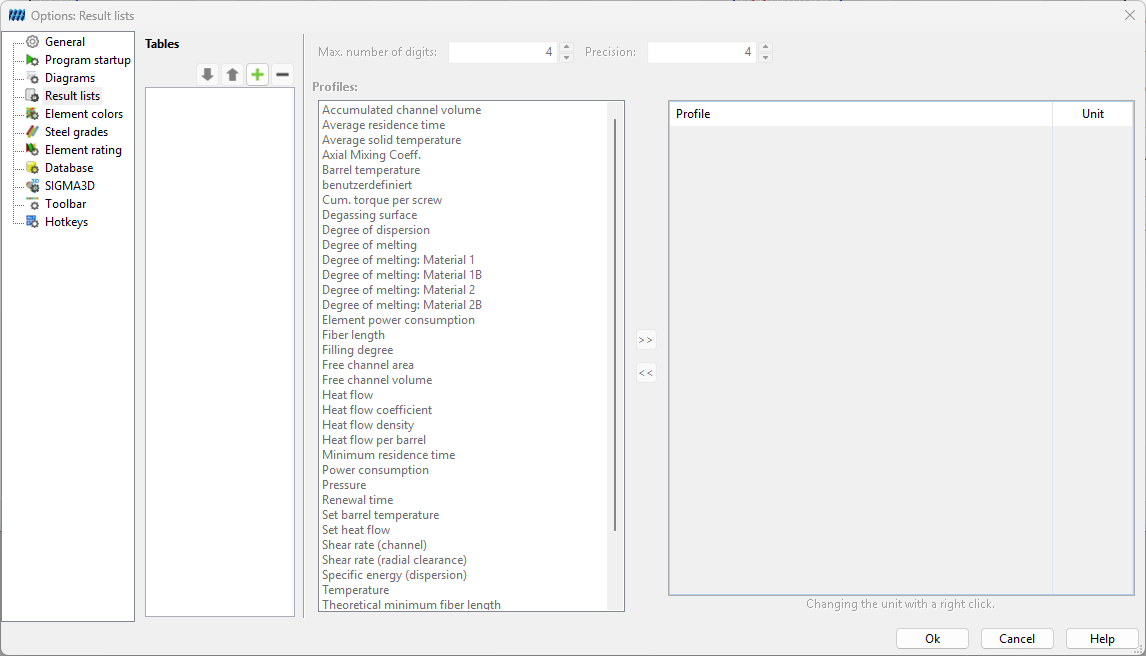
The tab** Result list** makes it possible to determine new tables for the output of results. In order to define a new table click on the button New table . In the opening window a name for the new table has to be entered and then confirm with Ok. It is possible to make settings concerning the maximal number of points and post decimal positions which differ from the standard settings. In order to determine which data should be given in the new table, mark the desired value in the left window and click on the button with the two arrows to the left. After that the marked value will be shown in the listing on the right. In order to delete values which are in the list on the right site, mark them and click on the button with the two arrows to the left. If the whole table should be deleted mark the table in the window on the top of the tab and click on the button Delete table.
Element Colours
Path: Main menu > Options > Element colors…
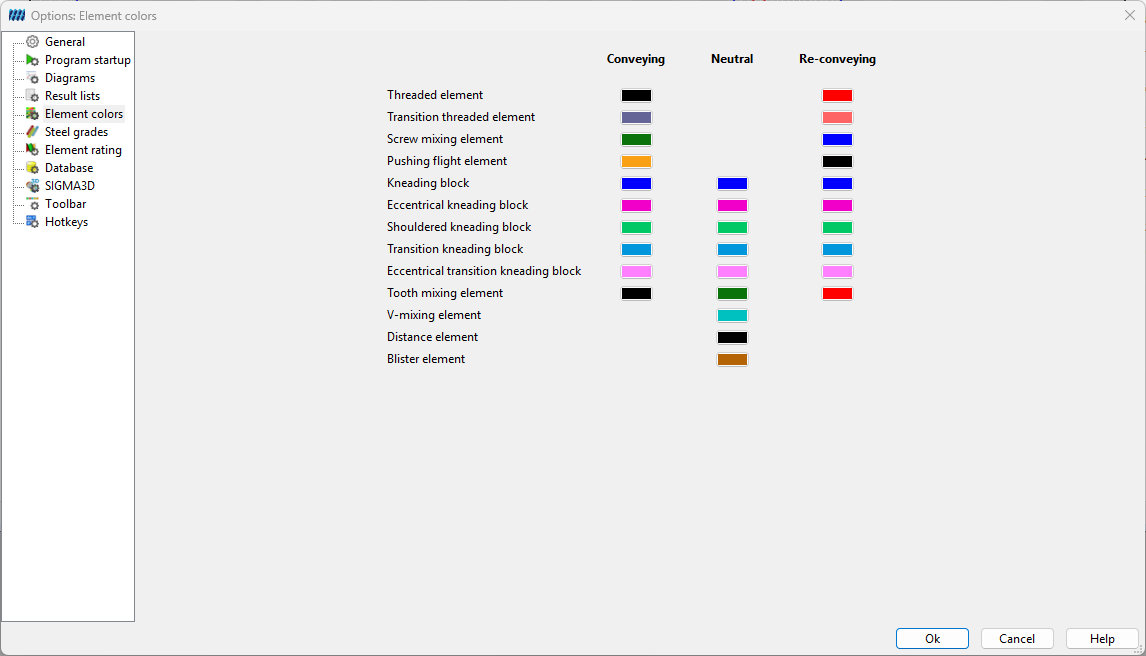
If it is desired to define new colors for single elements of the screw configuration, chose the tab Element colors to make individual settings concerning this (see figure).
Element rating
Path: Main Menu > Options > Element rating
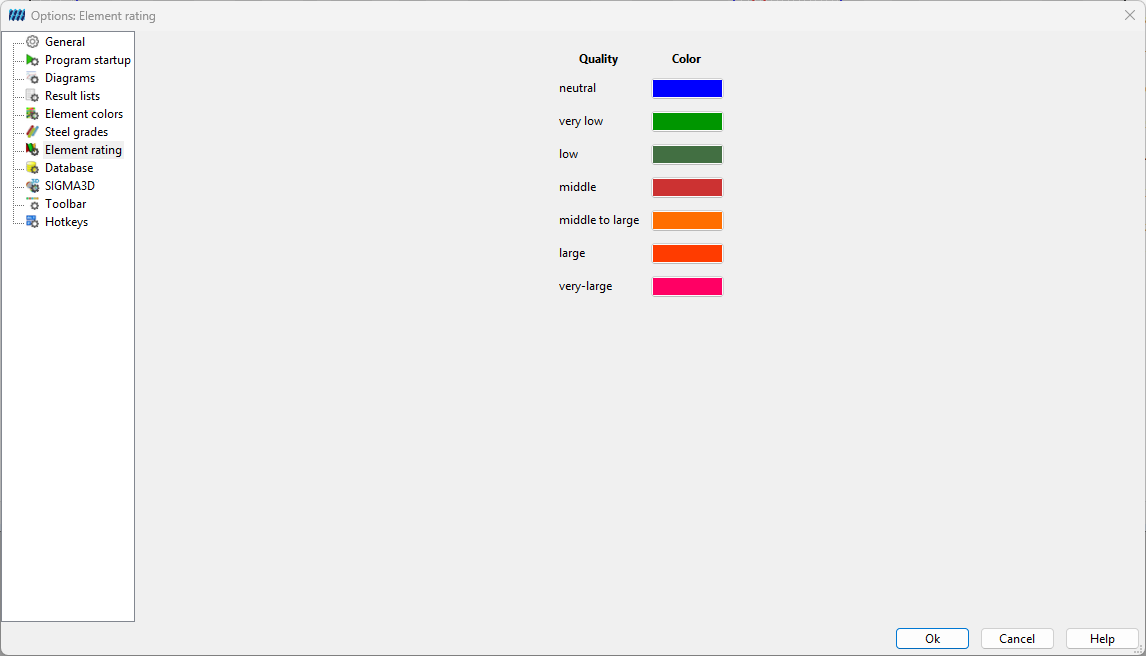
In this section, the colors for the respective quality criteria of the individual element evaluations can be set. To do this, click on the respective button and set the new color. This is done individually for each quality criterion.
Database
Path: Main menu > Options > Database…
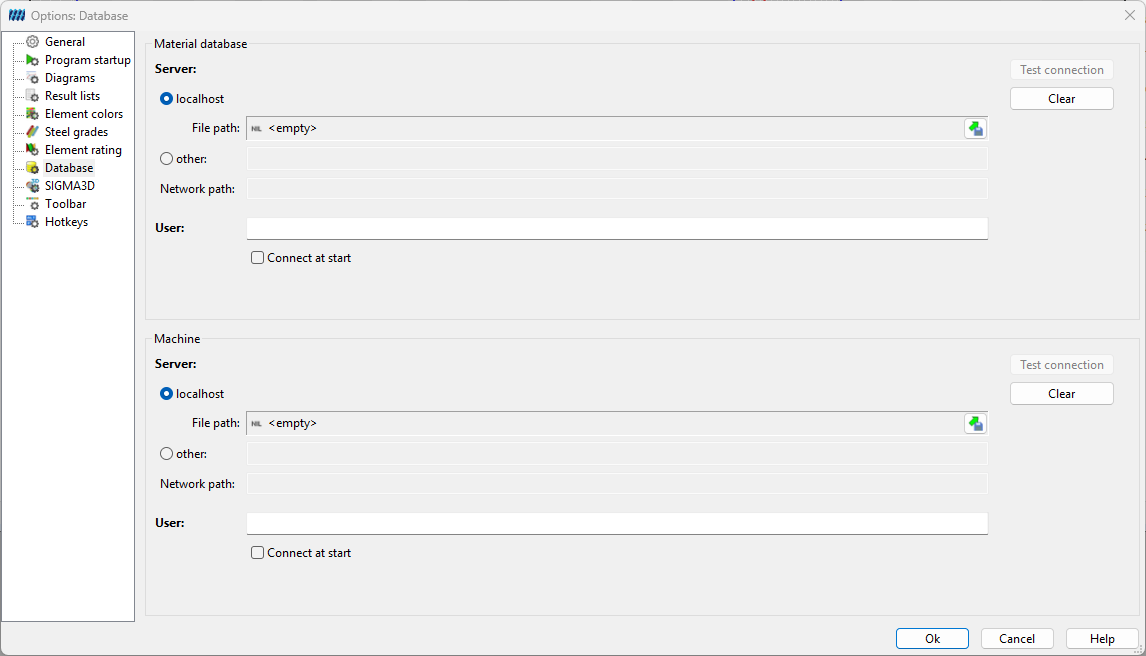
On the tab Database (see figure) standard databases can be entered for material and machine and the user can choose to connect them when starting SIGMA. To connect a database successfully four parameters are needed:
- Server: A symbolic or numerical IP address where the database is saved physically and the database serve (Firebird/ Interbase) is started. If your work station is the server, uncheck the respective box; the textbox should now show ”localhost”.
- Path: Says where the database is saved to. If your work station is the server you can search for the database by clicking the … button. The local PAM database i.e. is found in the program directory and is named Pam1.1.gdb.
- User: The user name of the database determines your rights. For a standard installation of PAM the user name is SYSDBA and the password masterkey. If you are refused a connection with this login contact your administrator.
- Password: On the Database tab of Options there is no box for entering a password, since SIGMA does not save passwords for security reasons. However, you will only have to enter the password once for each session when connecting a database.
The Test connection button tries to connect the specified database. This can be helpful if you are not positive about all database serves being installed correctly or in case you are using a central database.
Extrud3D
Path: Main menu > Options > Extrud3D
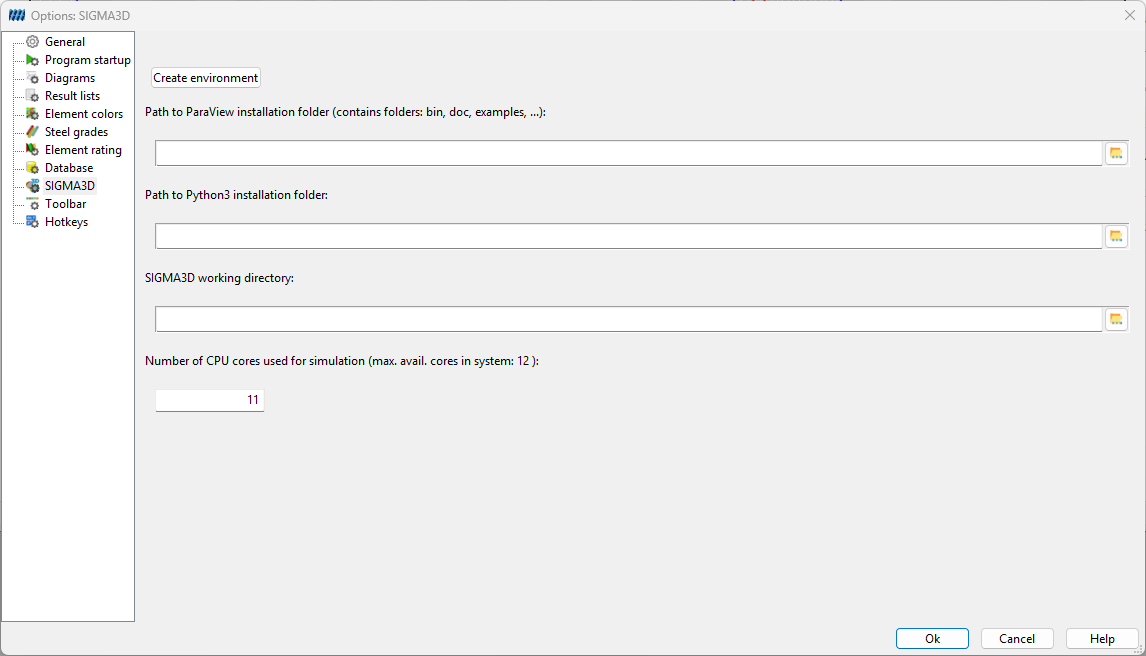
First, the path for the external postprocessing viewer Paraview must be set. The default path shown above exists or you can choose your own path. The same applies for the path to Python and Extrud3D. For the simulation, the maximum number of available CPU cores must be set. The maximum number of available CPU cores is the number of available CPU cores in the system minus one. For each simulation, this setting can be overwritten manually.
Toolbar
Path: Main menu > Options > Toolbar
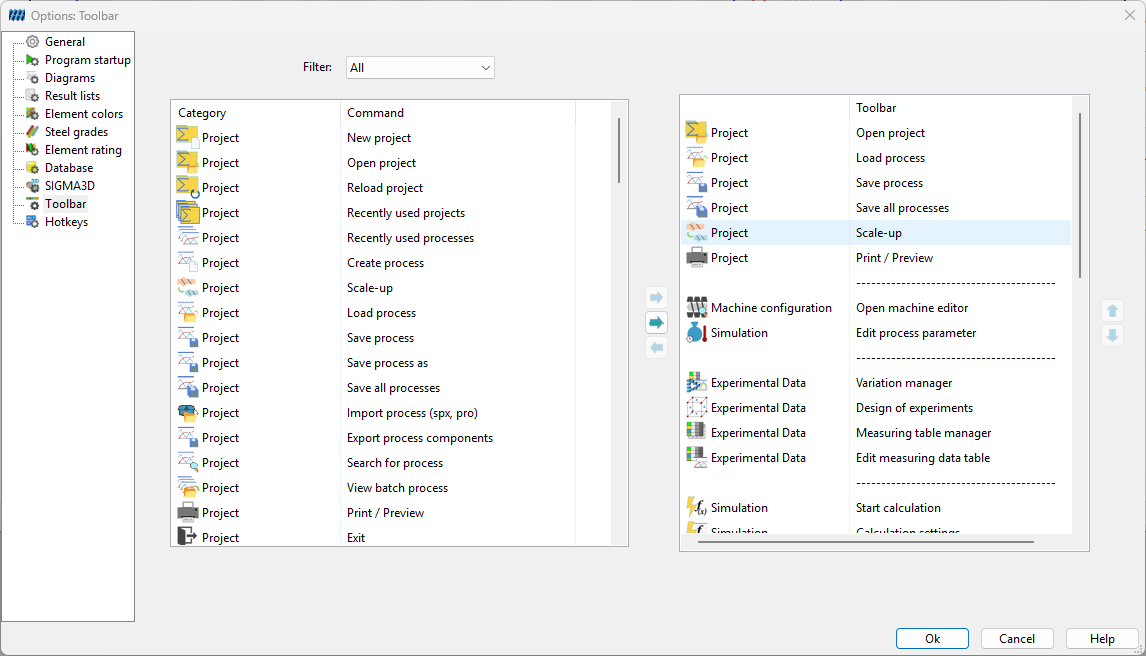
Under the Filter drop-down menu it is possible to limit the category of icons that will be displayed. With the help of the middle arrow a separator line can be inserted. The arrow pointing to the right can be used to add more icons to the toolbar, and the arrow pointing to the left can be used to remove them.
Hotkeys
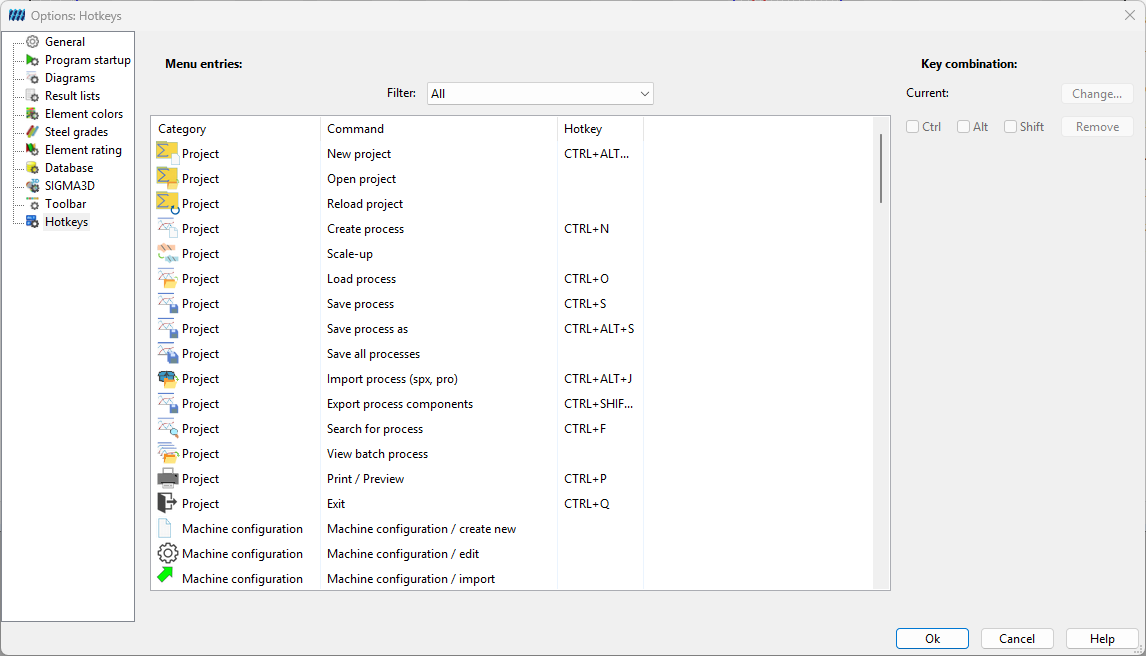
Path: Main menu > Options > Hotkeys
In this tab, key combinations for the respective menu items can be set or changed. To do this, the 'Change…' button is selected and the desired key combination is pressed. Alternatively, the key combinations can also be changed via the boxes and the listed keys removed or added.