Dies ist eine alte Version des Dokuments!
Main Menu
Main Menu
The main menu of the variation module can be divided into three areas:
- dialog window to choose factors and responses
- experimental design
- button bar to choose actions
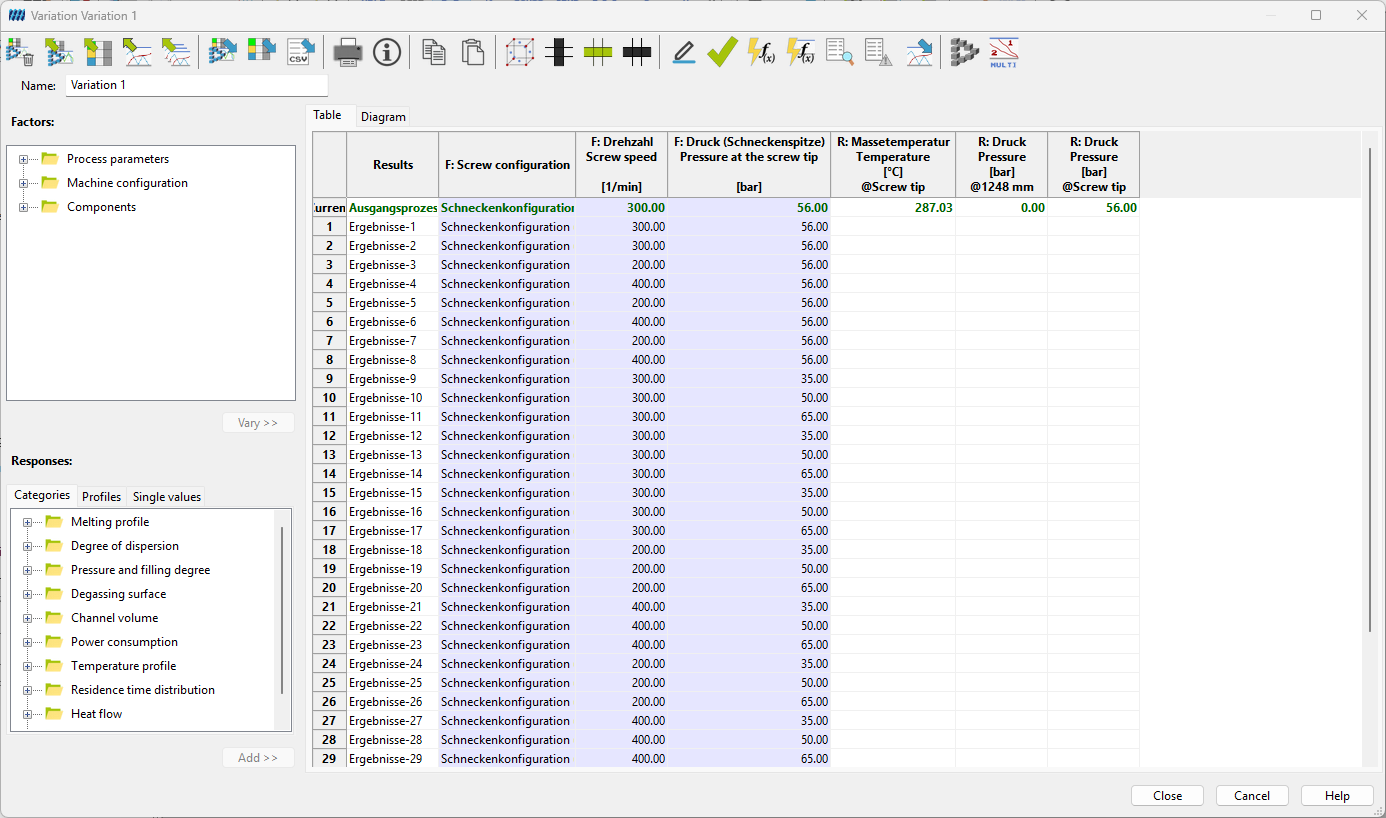
1. Dialog window to choose factors and responses
Before a factor or a response can be configured it has to be chosen via the file explorer// Factor or Response//.
Each of the factors is listed in one of the categories process parameters, machine configuration and components.
The responses can be chosen from two tabs. In the tab Ordered by… all standard responses are listed according to categories. In the tab All also responses defined by the user or seldomly used ones are listed alphabetically.
Open a file
Path: Double-click on the name of the file
Open the configuration dialog of a factor / response
Path: Double-click on the factor / response
or
Path: Click on the factor / response > Click on the button Vary or Add
2. Experimental design
Each row of the experimental design depicts one created experiment. The first row shows the values of the basic process. In the single columns the chosen factors and responses are shown.
responses already integrated into the experimental design can be configured with a double-click on the corresponding column name.
3. Button bar
| Nr. | Funktion | Nr. | Funktion |
|---|---|---|---|
| 1. | Clear table / New variation | 10. | Paste |
| 2. | Save file | 11. | Open design assistant |
| 3. | Save variation as… | 12. | Delete column |
| 4. | Import from experimental data sheet | 13. | Dublicate experiment |
| 5. | Export to experimental data sheet | 14. | Delete experiment |
| 6. | Export as .csv file | 15. | Check all experiments |
| 7. | Print table | 16. | Calculate all |
| 8. | Edit information and comment | 17. | Basic calculation options |
| 18. | Show results for the selected experiment | 19. | Show report file for the selected experiment |
| 20. | Create process for the selected experiment | 21. | Export as .spx file |
| 22. | Open analysis module | 23. | Open multi graphics |
Delete column
Deleting a column or a factor or response from the experimental design
Path: Click in an arbitrary field of the column > Click on the button Delete column
Dublicate experiment
Dublicating an already existing experiment or a row in the experimental design
Path: Click in an arbitrary field of the experiment / the row > Click on the button Dublicate experiment
Delete experiment
Deleting an experiment or a row in the experimental design
Path: Click in an arbitrary field in the experiment / the row > Click on the button Delete experiment
Check all experiments
The experimental design is checked for dublicates or not calculated experiments. If these exist, they can be deleted afterwards by the system. Thus this check can crucially shorten, the calculation time.
Calculate all
The calculation of the experiments is started.
Create process for the selected experiment
From each experiment shown in the experimental design an independent process can be created. For this purpose, the single process components are saved in separate files.
An experiment is chosen by clicking in the corresponding row of the experimental design. The dialog to save the single process components is opened by clicking on the button Create process for the selected experiment.